
Guides
WooCommerce
Orrerie Pay for WooCommerce adds "Crypto (Orrerie Pay)" to your shop's checkout. The buyer is sent to Orrerie's hosted checkout to pay, the money lands in your own wallet, and the WooCommerce order is marked paid when Orrerie confirms it.
What it is
A WordPress plug-in that registers a payment gateway with WooCommerce. It is a redirect gateway: the buyer presses the order button in your shop, pays on pay.orrerie.com, and comes back to your shop's own thank-you page. No payment field is shown inside your shop, and no wallet key ever reaches WordPress.
| It needs | Version |
|---|---|
| PHP | 7.4 or later |
| WooCommerce | 8 or later |
| An Orrerie Merchant account | With a restricted API key for the shop |
The plug-in is licensed GPL-2.0-or-later. It works with both the classic checkout and the block-based checkout, and with High-Performance Order Storage. Your shop's currency must be one Orrerie prices in. If it is not, the gateway hides itself and its settings page says why.
Install and connect
The current release is 1.0.7. Its SHA-256 is printed below, and the file is listed with the same value in this site's signed release record.
- File
orrerie-pay-for-woocommerce-1.0.7.zip- Size
- 131,112 bytes
- SHA-256
ea227845254542ff4723926e0e1fa7e4640dd6a478c7911555fe87fc488cf758
- Create a restricted keyIn the Orrerie dashboard, under Developers, create a restricted key with exactly these scopes:
checkout_sessions:write(to start each checkout),orders:read(to read the order back before anything changes in your shop),payments:read(to name the coin, network and transaction in a paid order's note),refunds:write(to file refund requests),events:read(to read events) andwebhooks:write(to add your shop's test webhook endpoint). Create one with a test key first. A key withoutpayments:readstill has its orders marked paid; their note then says that it names no coin, network or transaction, and why. - Install the plug-inIn WordPress choose Plugins, Add New Plugin, Upload Plugin, choose the zip above, then install and activate it. Check its SHA-256 against the value above before you upload it.
- Open its settingsIn WooCommerce, Settings, Payments, choose Orrerie Pay (the plug-in's name in that list; buyers see its title, "Crypto (Orrerie Pay)" unless you change it).
- Paste the keys and saveChoose the mode, paste the test key and the live key, and save. On saving the test key, the plug-in creates a test webhook endpoint at Orrerie for your shop and stores its signing secret by itself. For live mode it shows your shop's callback address: add that endpoint in the Orrerie dashboard under Developers, Webhooks (a live endpoint is added only there, with a passkey), then paste its signing secret into the plug-in's settings.
- Place a test orderWith the mode on test, buy something in your shop, and press Pay in full in the checkout's "Test payment" panel. The WooCommerce order becomes Processing.
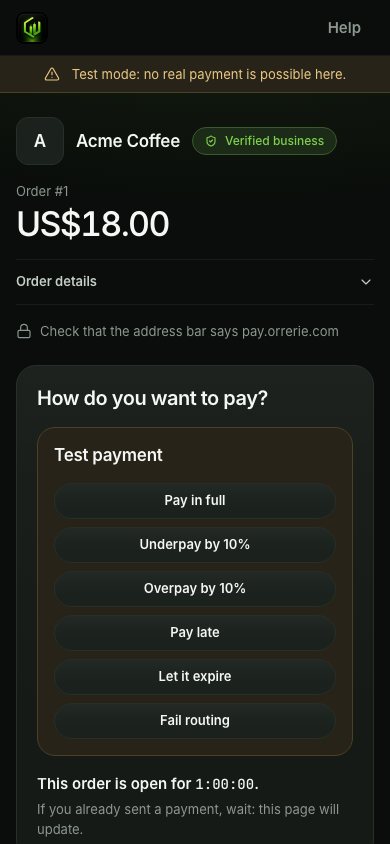
Use a restricted key
The key in WordPress can create checkout sessions, read orders and file refund requests. A refund request moves nothing until a person approves it in the Orrerie dashboard with a passkey. If your WordPress site is broken into, the key cannot take your money.
Settings
| Setting | What it does |
|---|---|
| Enabled | Shows or hides the gateway at checkout. |
| Title | What the buyer sees at checkout. The default is "Crypto (Orrerie Pay)". |
| Description | The line under the title at checkout. |
| Mode | Test or live. |
| Test secret key | An sk_test_ key. Used while the mode is test. |
| Live secret key | A restricted live key with the five scopes above. |
| Test webhook signing secret | Filled in by the plug-in when you save a test key: it adds your shop's test webhook endpoint at Orrerie by itself. |
| Live webhook signing secret | A live endpoint is added only in the Orrerie dashboard, with a passkey. Add it there for the address the settings show under Webhook, then paste the whsec_ secret it shows here. |
| Order expiry | How many minutes a buyer has to pay: 15 to 10,080 (seven days). The default is 60. |
| Mark order as | The WooCommerce status of a paid order: Processing or Completed. |
| Debug log | Off by default. It never writes a key, a secret or a signature. |
On the Unverified tier a business has one webhook endpoint, so the plug-in reuses an endpoint that already exists for your shop's address.
What happens at checkout
When the buyer places the order, the plug-in creates a checkout session for the order's total in your shop's currency, with your WooCommerce order number as the reference, and sends the buyer to the session's url. The WooCommerce order is Pending payment. The call carries an Idempotency-Key made from your site, the order and the attempt, so a double click cannot create two sessions.
curl
curl https://api.orrerie.com/v1/checkout_sessions \
  -H "Authorization: Bearer $ORRERIE_SECRET_KEY" \
  -H "Idempotency-Key: 8f14e45f-ceea-467f-a9d2-6f1c2b3d4e5a" \
  -H "Content-Type: application/json" \
  -d '{
  "amount": "21.99",
  "currency": "USD",
  "description": "Order #1042",
  "reference": "1042",
  "customer_email": "jane@example.com",
  "success_url": "https://acme.example/thanks?session={CHECKOUT_SESSION_ID}",
  "cancel_url": "https://acme.example/cart",
  "client_reference_id": "1042",
  "metadata": {
    "cart_id": "c_7781"
  }
}'
JavaScript
const response = await fetch("https://api.orrerie.com/v1/checkout_sessions", {
  method: "POST",
  headers: {
    Authorization: `Bearer ${process.env.ORRERIE_SECRET_KEY}`,
    "Idempotency-Key": "8f14e45f-ceea-467f-a9d2-6f1c2b3d4e5a",
    "Content-Type": "application/json",
  },
  body: JSON.stringify({
    "amount": "21.99",
    "currency": "USD",
    "description": "Order #1042",
    "reference": "1042",
    "customer_email": "jane@example.com",
    "success_url": "https://acme.example/thanks?session={CHECKOUT_SESSION_ID}",
    "cancel_url": "https://acme.example/cart",
    "client_reference_id": "1042",
    "metadata": {
      "cart_id": "c_7781"
    }
  }),
});
const result = await response.json();
if (!response.ok) throw new Error(`${result.error.code}: ${result.error.message}`);
console.log(result);
Python
import os
import requests

response = requests.post(
    "https://api.orrerie.com/v1/checkout_sessions",
    headers={"Authorization": f"Bearer {os.environ['ORRERIE_SECRET_KEY']}", "Idempotency-Key": "8f14e45f-ceea-467f-a9d2-6f1c2b3d4e5a"},
    json={
        "amount": "21.99",
        "currency": "USD",
        "description": "Order #1042",
        "reference": "1042",
        "customer_email": "jane@example.com",
        "success_url": "https://acme.example/thanks?session={CHECKOUT_SESSION_ID}",
        "cancel_url": "https://acme.example/cart",
        "client_reference_id": "1042",
        "metadata": {
            "cart_id": "c_7781",
        },
    },
    timeout=30,
)
result = response.json()
if not response.ok:
    raise RuntimeError(f"{result['error']['code']}: {result['error']['message']}")
print(result)
PHP
<?php
$request = curl_init('https://api.orrerie.com/v1/checkout_sessions');
curl_setopt_array($request, [
    CURLOPT_RETURNTRANSFER => true,
    CURLOPT_CUSTOMREQUEST => 'POST',
    CURLOPT_HTTPHEADER => [
        'Authorization: Bearer ' . getenv('ORRERIE_SECRET_KEY'),
        'Idempotency-Key: 8f14e45f-ceea-467f-a9d2-6f1c2b3d4e5a',
        'Content-Type: application/json',
    ],
    CURLOPT_POSTFIELDS => json_encode([
        'amount' => '21.99',
        'currency' => 'USD',
        'description' => 'Order #1042',
        'reference' => '1042',
        'customer_email' => 'jane@example.com',
        'success_url' => 'https://acme.example/thanks?session={CHECKOUT_SESSION_ID}',
        'cancel_url' => 'https://acme.example/cart',
        'client_reference_id' => '1042',
        'metadata' => [
            'cart_id' => 'c_7781',
        ],
    ]),
]);
$body = curl_exec($request);
if ($body === false) {
    throw new RuntimeException(curl_error($request));
}
$result = json_decode($body, true);
if (curl_getinfo($request, CURLINFO_HTTP_CODE) >= 400) {
    throw new RuntimeException($result['error']['code'] . ': ' . $result['error']['message']);
}
print_r($result);
After paying, the buyer returns to your shop's order-received page. If the API refuses the call, the buyer sees a notice in your shop and no order is charged.
What happens to the WooCommerce order
The plug-in listens at https://. For each delivery it checks the Orrerie-Signature header, drops an event it has already handled, and reads the order again from Orrerie before it changes anything.
| Orrerie event | WooCommerce order |
|---|---|
order. | The amount and currency are checked against the WooCommerce order, then payment is completed. A note records the asset, the network and a link to the transaction. An overpaid order also gets the note "Overpaid by" the amount ": refund or keep as credit in Orrerie Merchant". |
order. | On hold, with a note of the amount still due. |
order., order. | Cancelled, if it was still Pending payment. WooCommerce restores the stock. |
order. | On hold, with a note and an email to the shop's administrator. |
| A payment that arrives after WooCommerce cancelled the order | On hold, with the note "Paid after expiry: check stock, then process or refund". |
refund. | The refund is recorded in WooCommerce. |
refund., refund. | A note on the order. |
Refunds
Press Refund on a WooCommerce order as usual. The plug-in files a refund request at Orrerie and WooCommerce shows "Refund sent to Orrerie Merchant for approval. It will be recorded here when it is confirmed."
Two things then happen outside WordPress. An Owner or a Finance member approves the refund in the Orrerie dashboard with a passkey. And the buyer says which wallet the refund should go to, because your shop does not know it: the dashboard shows the refund's single-use claim link, and you give it to the buyer yourself, since Orrerie sends payers no email. When the refund is confirmed on its network, the plug-in records it in WooCommerce. Nothing is recorded as refunded before the money has moved. Money out has the whole sequence.
Subscriptions
WooCommerce Subscriptions expects a gateway that can take the next payment by itself, which no crypto gateway can. Its manual-renewal mode works: each renewal order is paid by the customer through this gateway. For plans that Orrerie reminds and tracks itself, see subscriptions.
Checking that it works
- Place a test order and simulate the payment. The order becomes Processing or Completed, as you set.
- Press Underpay by 10% on the test checkout. The order goes on hold.
- Let a test order expire. The order is cancelled and the stock comes back.
- In the Orrerie dashboard, under Developers, open the webhook endpoint for your shop. Each delivery is listed with your shop's answer.
The same in brief, without code: Crypto payments for WooCommerce.