
Guides
Point of sale
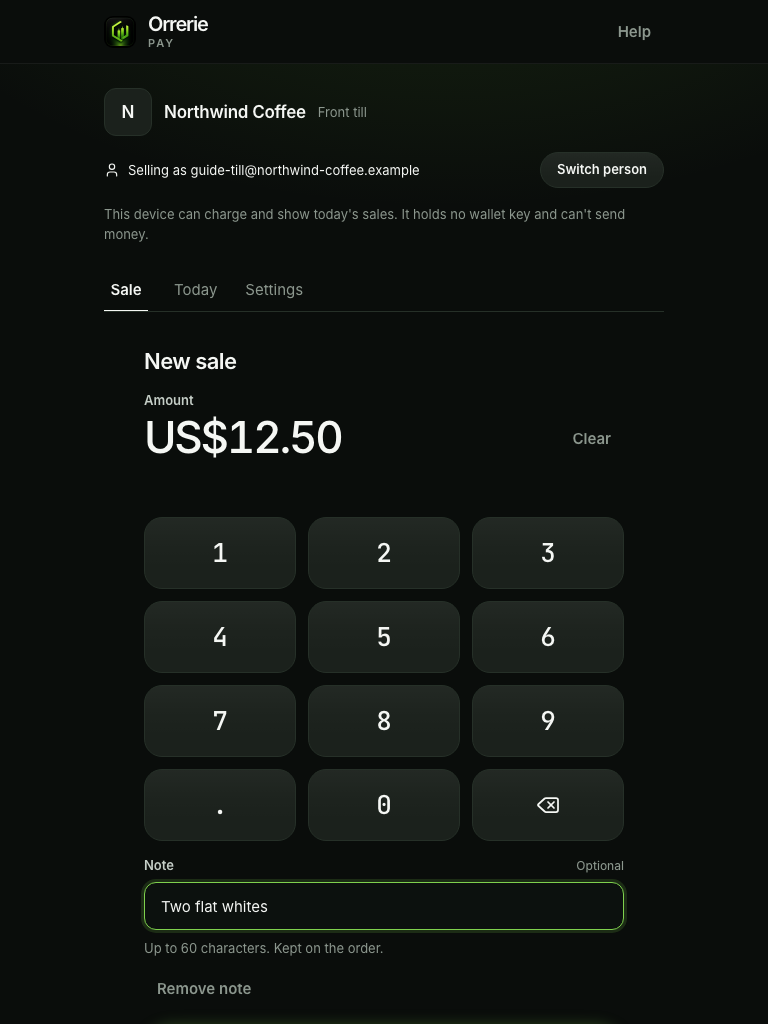
Point of sale is a keypad in a browser, on any phone or tablet. A cashier types an amount, the customer scans a QR code and pays from their own wallet, and the till says "Paid". The device holds no key and cannot move money.
What you need
- A phone or a tablet with a browser and a connection. Nothing is installed.
- A member with the Owner or Admin role to pair the device.
- A PIN for each person who sells, if you keep Staff must enter a PIN on.
A paired device can do two things: create point-of-sale orders, and show its own sales for today. It cannot refund, see a balance or reach an address. Each charge is an ordinary order with source: "pos", paid to your own wallet like every other.
Pair a device
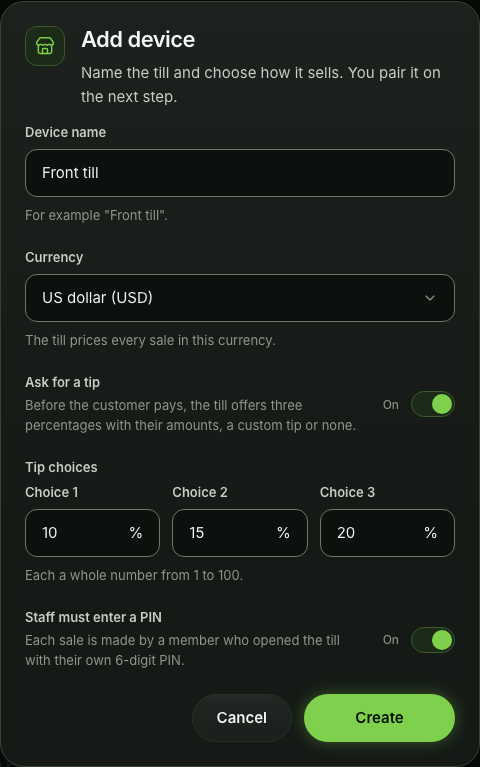
- Add the device in the dashboardChoose Point of sale, then Add device. Give it a name such as "Front till", choose the currency it charges in, and choose whether it asks for a tip and whether staff must enter a PIN.
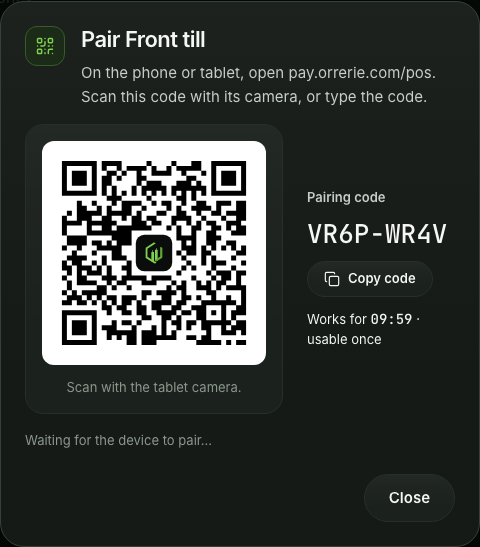
- Press CreateThe dashboard shows a QR code and a code of 8 characters. The code works once and for 10 minutes.
- Open the till on the deviceOn the phone or tablet open
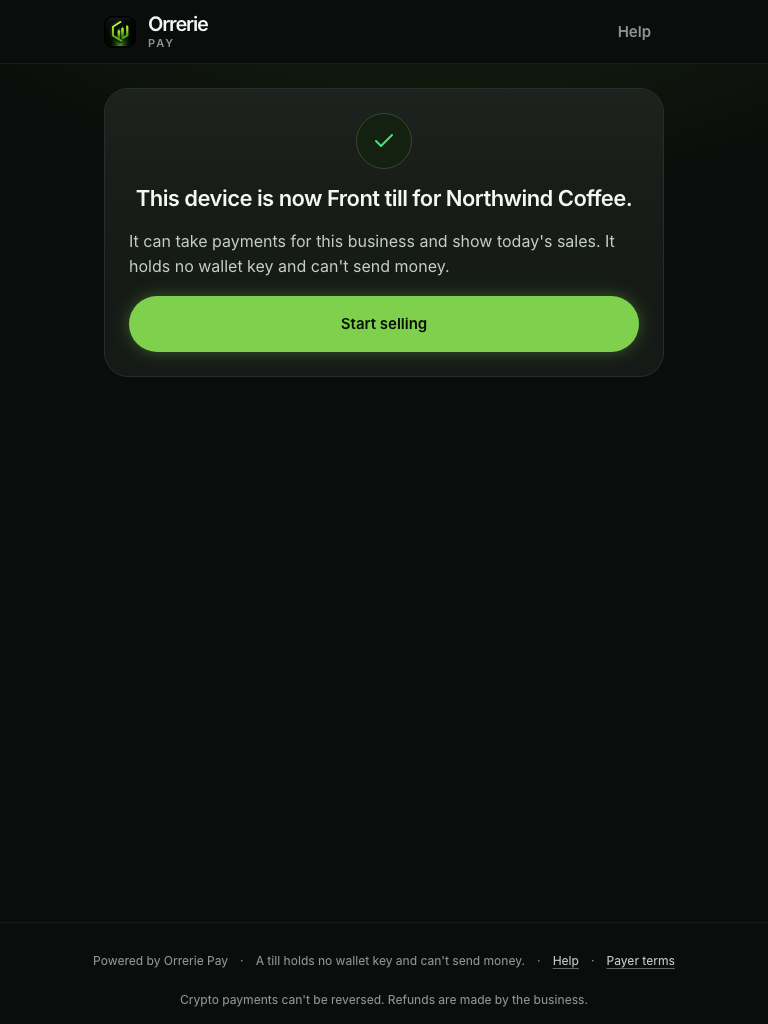
pay.orrerie.com/pos, then scan the QR code or type the code. - The device is pairedIt reads "This device is now its name for your business." It stays paired for 90 days from its last use.
| If pairing fails | Words on the device |
|---|---|
| The code is wrong or was already used | "That code isn't right or has been used. Get a new one from the dashboard." After 5 wrong tries from one connection, pairing pauses for 15 minutes. |
| The code is older than 10 minutes | "That code has expired. Get a new one from the dashboard." |
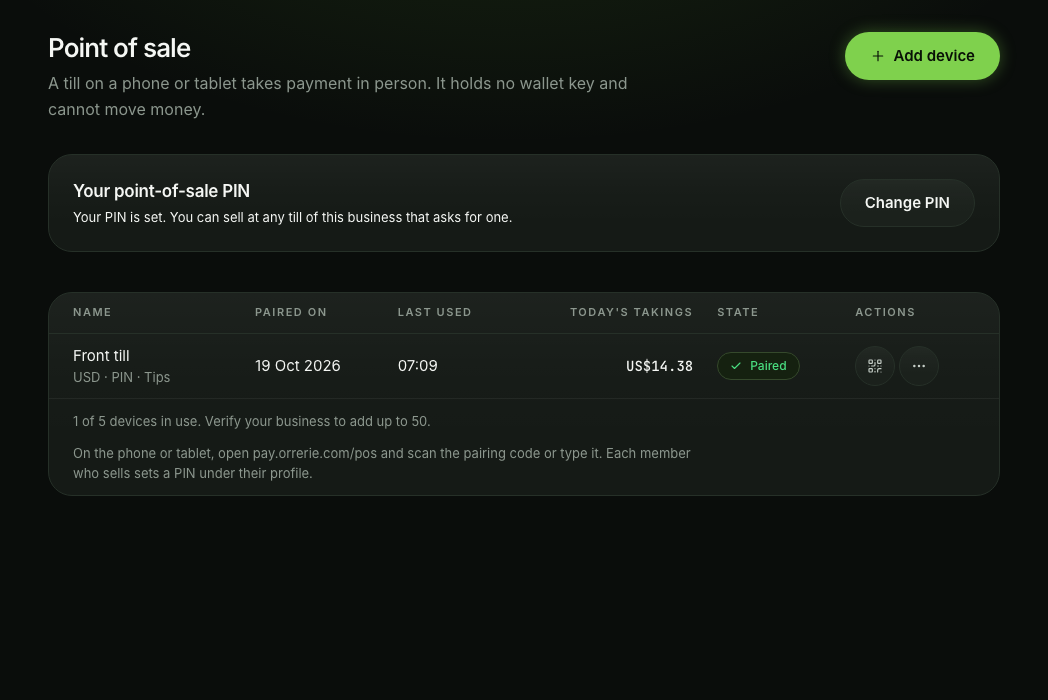
In the dashboard each device shows when it was paired, when it was last used and today's takings. Pair again ends the old pairing. Remove stops the device at once. An Unverified business can have 5 devices, a Verified business 50.
Set staff PINs
Each person who sells sets a PIN of 6 digits under Point-of-sale PIN in their profile menu. A PIN that is easy to guess is refused. A member needs the Cashier role or a higher one.
On the till, "Who's selling?" lists the people who have a PIN, each by their first name (the name they gave in the dashboard; the till faces customers, so it never shows a surname or an email address). The cashier taps their name and enters the PIN. Five wrong tries lock that person on that device for 15 minutes. The till returns to "Who's selling?" after 10 minutes untouched. A PIN signs in to nothing else.
Take a payment
- Type the amountThe cashier types the amount on the keypad, adds a note if wanted, and presses Charge. The smallest charge is US$1.00.
- Offer a tip, if you switched it onThe tablet is turned to the customer: "Add a tip?" with your three percentages, Custom and No tip.
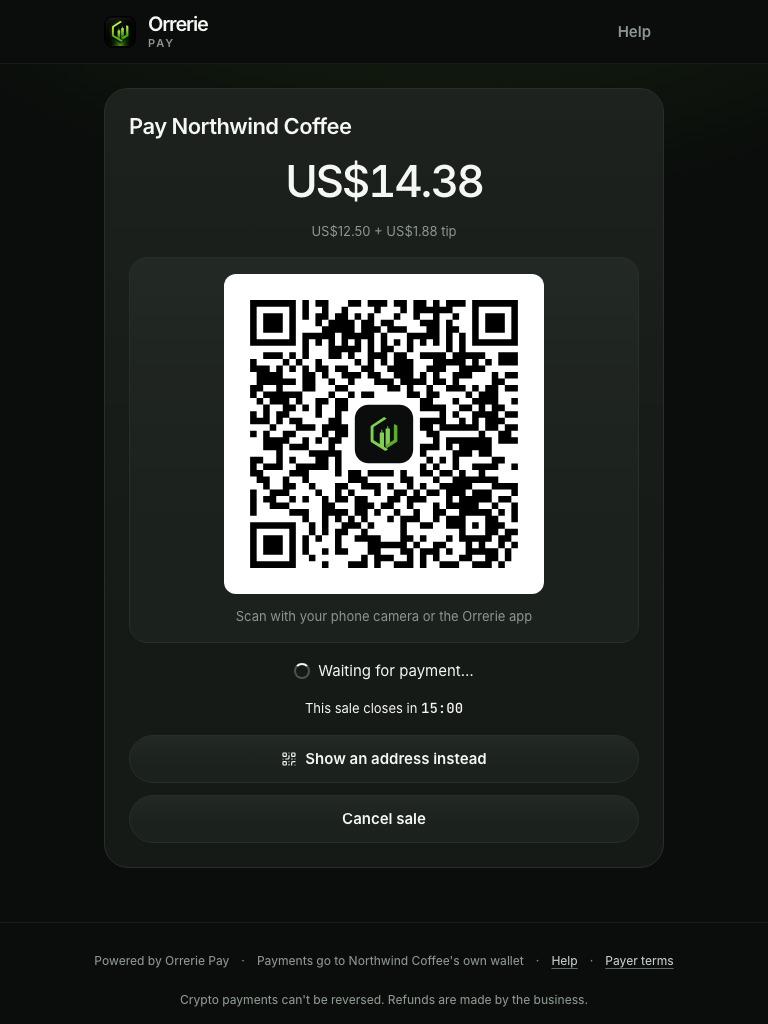
- Show the codeThe till shows the total and a large QR code, with "Scan with your phone camera or the Orrerie app". The customer's phone opens the ordinary checkout, where Pay with Orrerie is the first button.
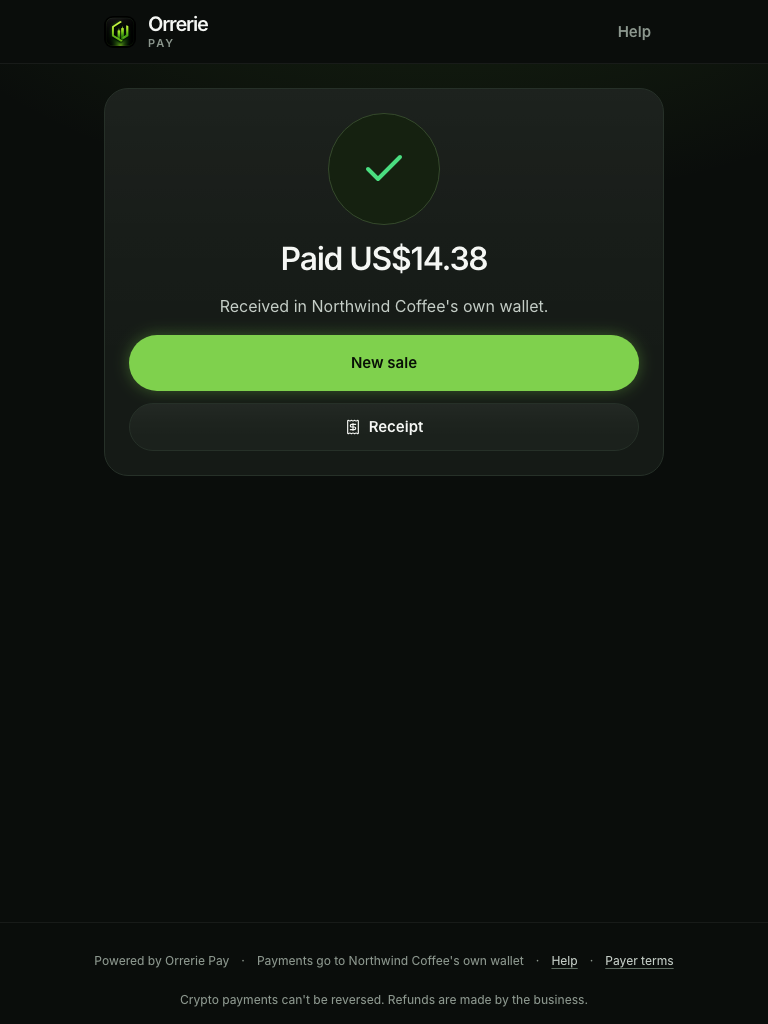
- Wait for the tickThe till reads "Waiting for payment…", then "Payment seen. Confirming…", then Paid with the amount, on a full screen with a short sound.
- Give a receiptReceipt shows a QR code of the receipt page for the customer to scan with their phone. Orrerie sends payers no email in this release, so the till offers no emailed receipt.
A point-of-sale order lives for 15 minutes, and the till shows the time left. For a customer whose wallet scans only addresses, Show an address instead lets the cashier pick an asset and a network and shows that address, its QR code and the exact amount on the till.
What the till says
| Outcome | Words on the till | Buttons |
|---|---|---|
| Paid | "Paid" with the amount | New sale · Receipt |
| Part paid | "Part paid" with what arrived and what is still to pay | Collect the rest · Finish as part paid |
| Overpaid | "Paid, with the extra amount extra. A manager can refund the extra from the dashboard." | New sale |
| The 15 minutes ran out | "This sale timed out. Nothing was received." | Try again · New sale |
| Cancelled before the customer saw an address | "Sale cancelled." | New sale |
| Cancel pressed after the customer has an address | "The customer may already be paying. This sale will stay open until its time." | Keep waiting · New sale |
| No connection | "No connection. Nothing can be charged until this device is back online." | The keypad is disabled. |
| The device was removed in the dashboard | "This device was removed by your business. Pair it again to use it." | None |
Slow networks
A payment in Bitcoin, Litecoin or Dogecoin is seen at once and confirmed minutes later. The till says so, moves the sale to Pending in today's list and frees the keypad. It never calls an unconfirmed payment Paid. Whether to hand goods over before the confirmation is your shop's decision.
Nothing is queued while the device is offline. An order that Orrerie's server never saw cannot be paid, so the till refuses to charge until the connection is back.
Sales in your own systems
Every sale sends the same events as any order, order.paid first among them. The order's pos_device names the device. List your devices to attribute sales:
curl
curl https://api.orrerie.com/v1/pos_devices \
  -H "Authorization: Bearer $ORRERIE_SECRET_KEY"
JavaScript
const response = await fetch("https://api.orrerie.com/v1/pos_devices", {
  headers: {
    Authorization: `Bearer ${process.env.ORRERIE_SECRET_KEY}`,
  },
});
const result = await response.json();
if (!response.ok) throw new Error(`${result.error.code}: ${result.error.message}`);
console.log(result);
Python
import os
import requests

response = requests.get(
    "https://api.orrerie.com/v1/pos_devices",
    headers={"Authorization": f"Bearer {os.environ['ORRERIE_SECRET_KEY']}"},
    timeout=30,
)
result = response.json()
if not response.ok:
    raise RuntimeError(f"{result['error']['code']}: {result['error']['message']}")
print(result)
PHP
<?php
$request = curl_init('https://api.orrerie.com/v1/pos_devices');
curl_setopt_array($request, [
    CURLOPT_RETURNTRANSFER => true,
    CURLOPT_HTTPHEADER => [
        'Authorization: Bearer ' . getenv('ORRERIE_SECRET_KEY'),
    ],
]);
$body = curl_exec($request);
if ($body === false) {
    throw new RuntimeException(curl_error($request));
}
$result = json_decode($body, true);
if (curl_getinfo($request, CURLINFO_HTTP_CODE) >= 400) {
    throw new RuntimeException($result['error']['code'] . ': ' . $result['error']['message']);
}
print_r($result);
Devices are paired and removed only in the dashboard, by a signed-in member. The API lists them and cannot create one, so an API key can never add a till.
Try it
There is no test till. A till takes real payments, so devices are added and changed in live mode only: with the dashboard in test mode, Point of sale keeps Add device off and says why. To see the whole flow before your first customer, pair a device in live mode and charge the smallest sale, US$1.00, paying it from a wallet of your own. The money arrives in your own Orrerie wallet like any other payment.
To try the checkout your customers see, without real money, use a test-mode payment link: it opens the same checkout, with its "Test payment" panel.
The same in brief, without code: Crypto point of sale in a browser.